

Pinned section
Feature posts and pages at the top of Maido’s homepage. The section supports up to eight featured posts, two featured pages, and one separate hero item.
Step-by-Step- Open the post or page you want to add to the pinned section.
- Open its settings panel from the icon in the top-right corner.
- Turn on 'Feature this post/page', then close the panel and update the content.
Featured posts and pages are ordered by their last update date. Featured pages appear before featured posts. The most recently updated item in each group appears first.Possible layouts of the pinned section
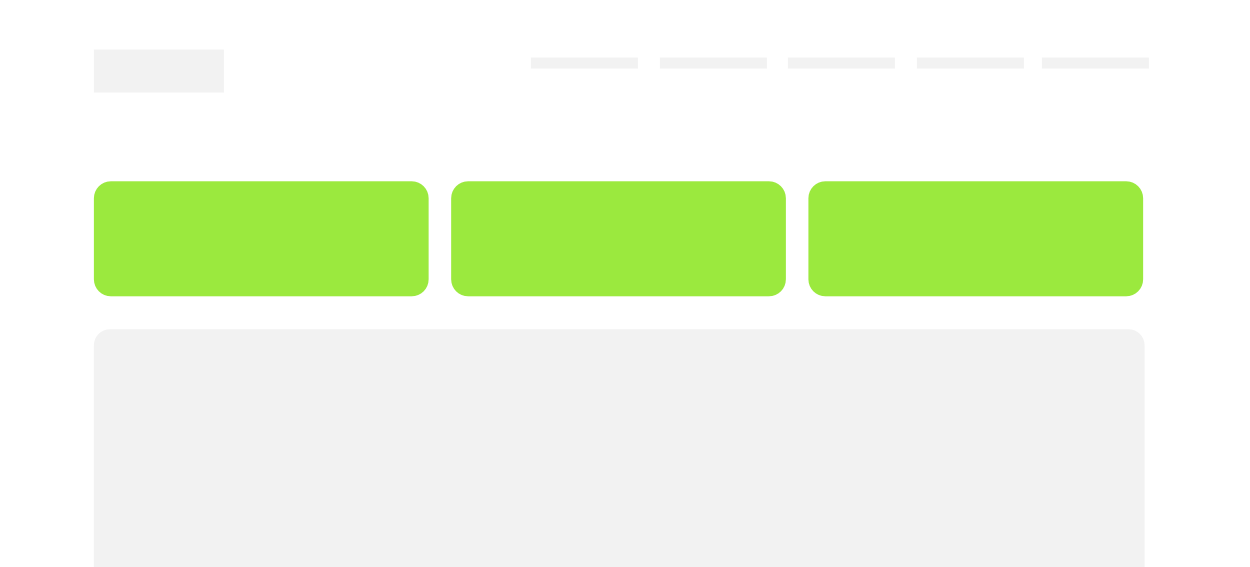
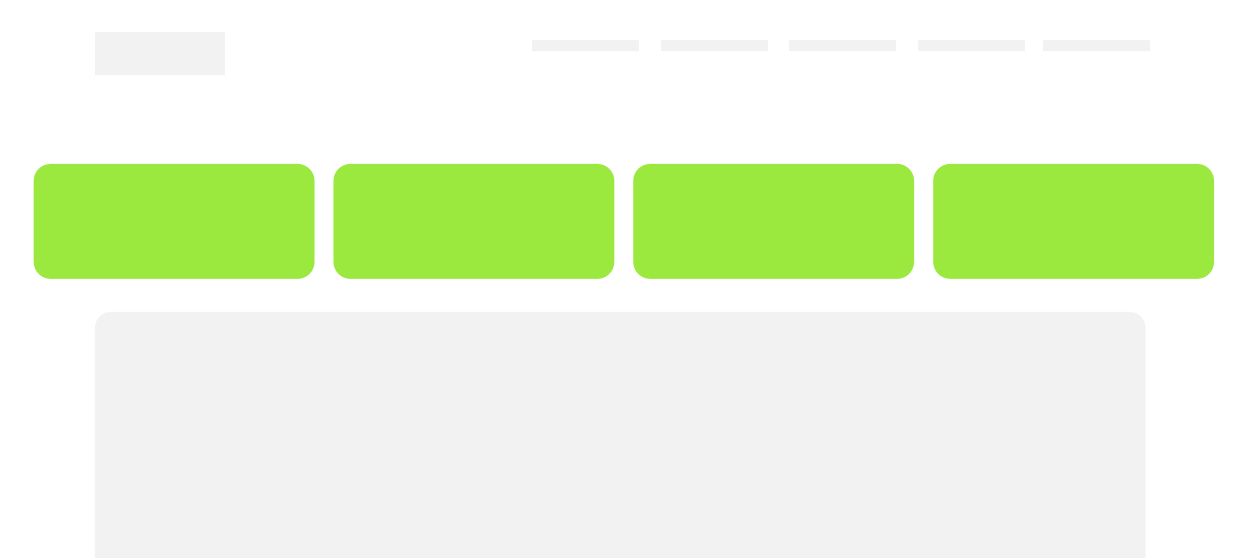
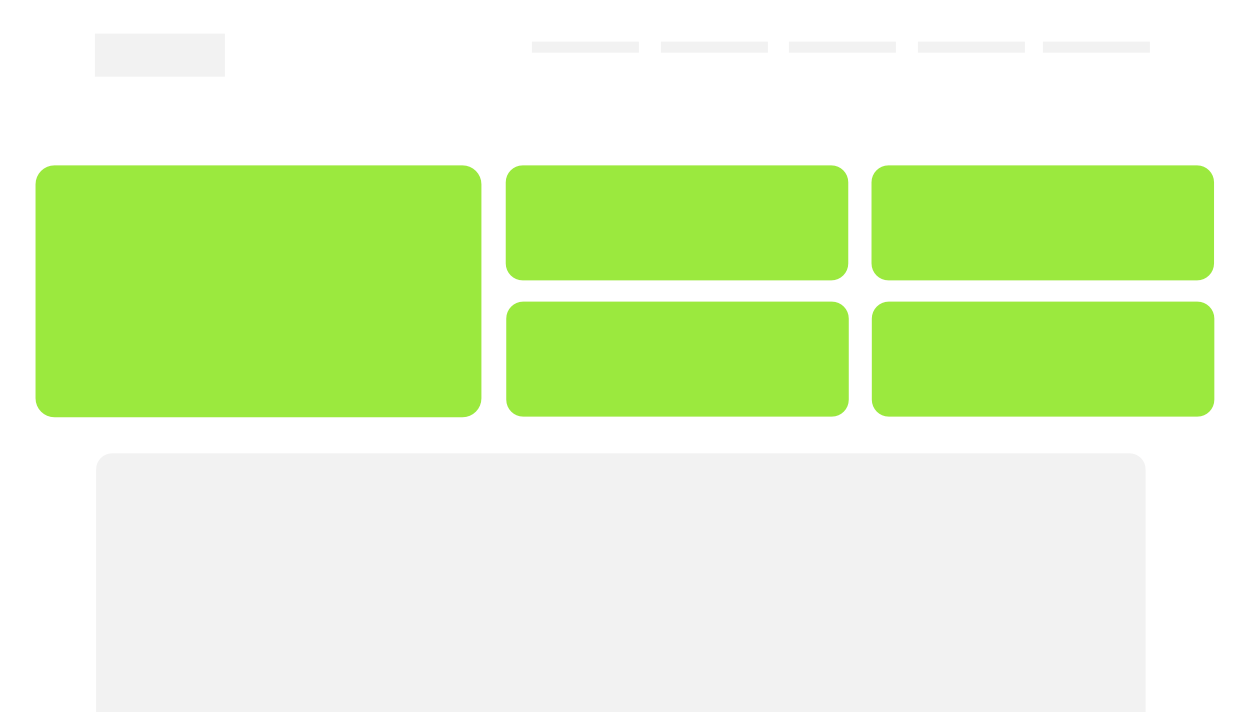
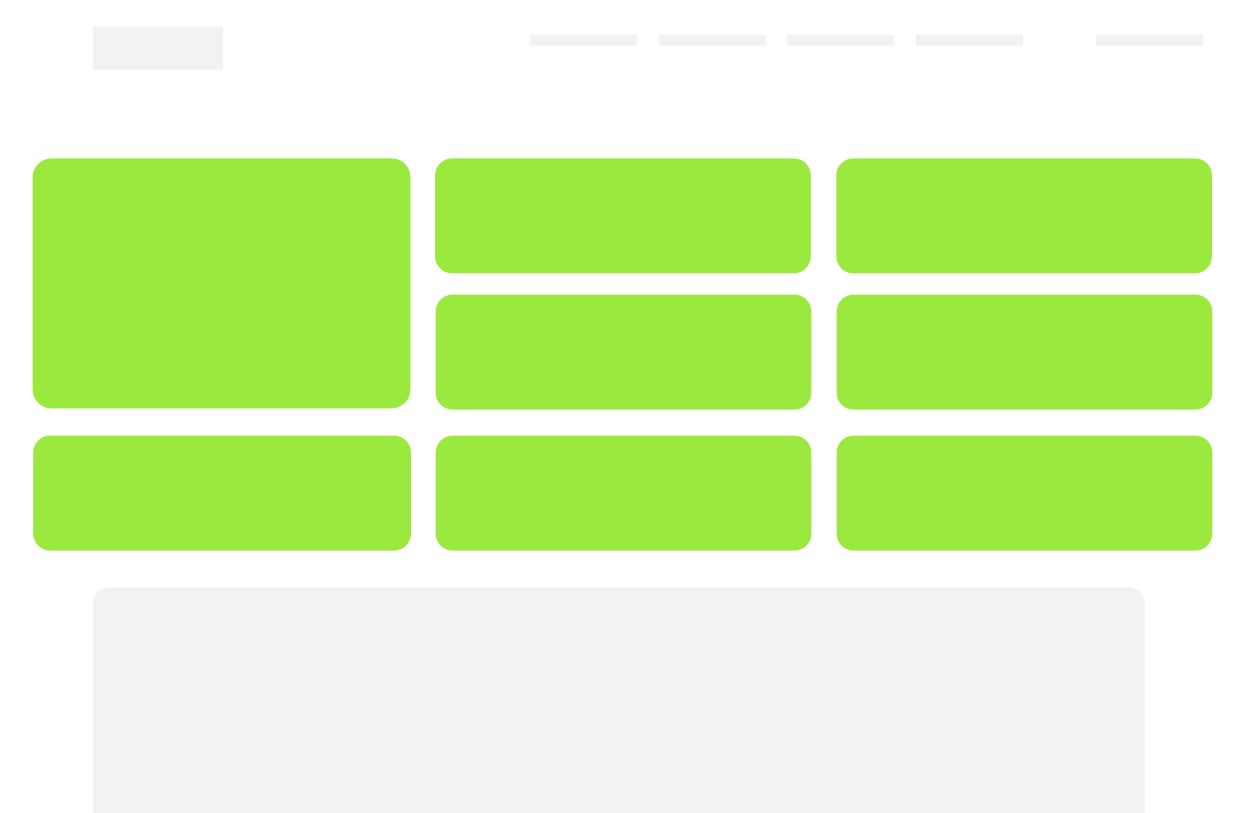
Maido arranges the pinned section for one to eight featured posts, up to two featured pages, and a separate hero item.
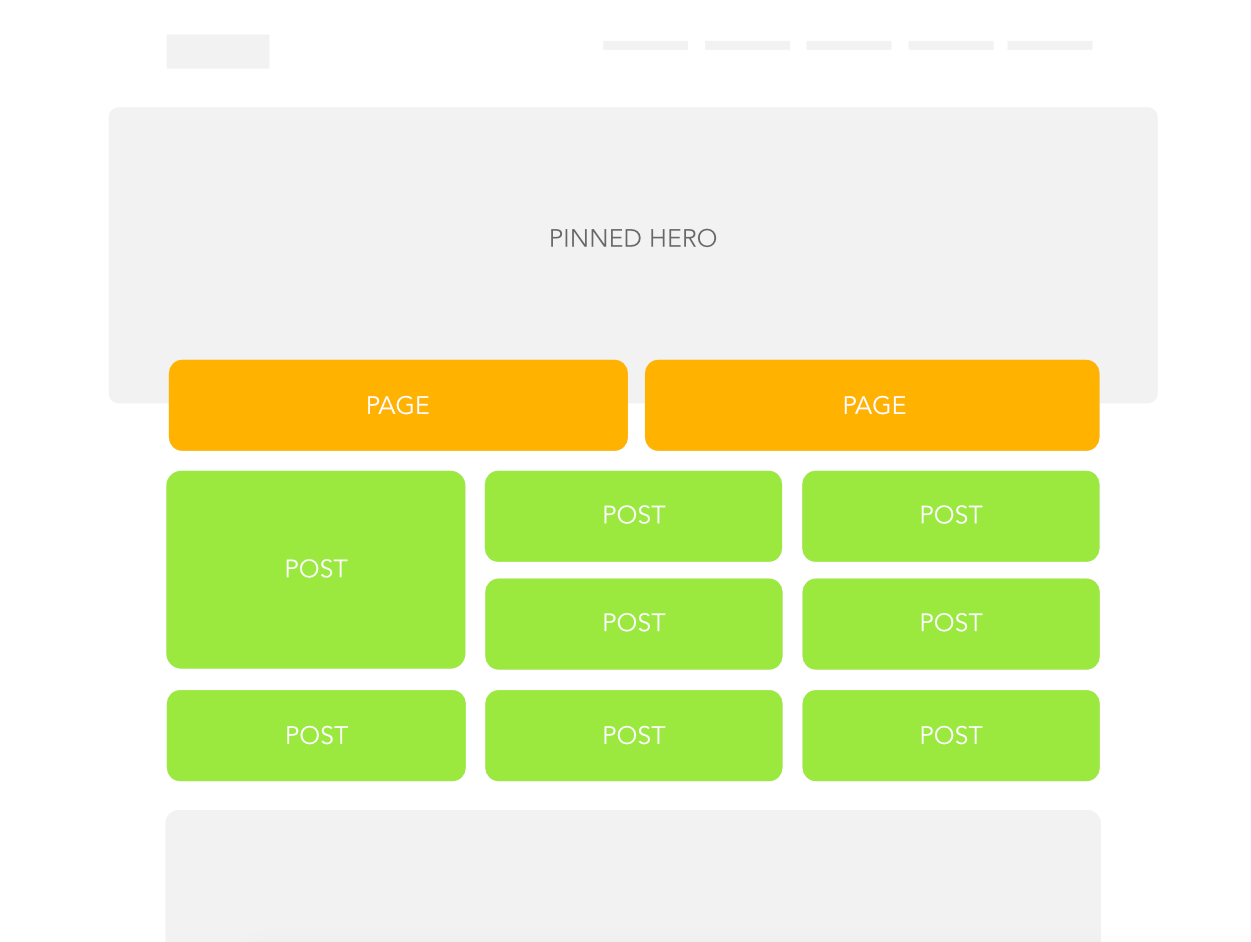
- Open the published post or page you want to feature as the hero item.
- In its settings panel, add the internal tag
#pinned-hero. Only one item should use this tag. - Update the post or page. The hero item also aligns the pinned section with the posts section.
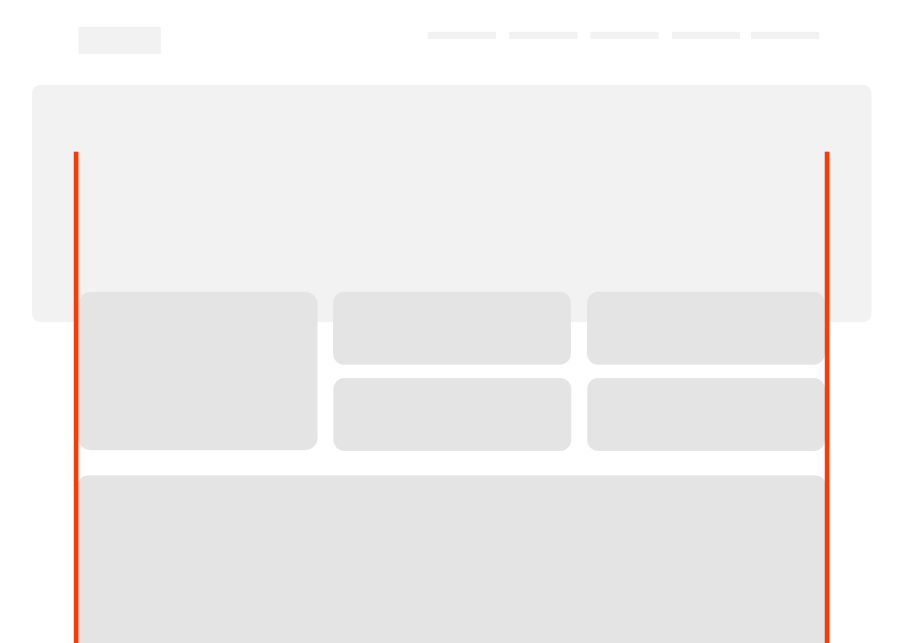
The internal tag slug must be hash-pinned-hero.
Type at least 2 characters to search